
The two photo slots assign identities to roles in a prepared dance. Photo 1 is the main dancer; Photo 2 is the dance partner. The role stays with the dancer when the camera or the performers move. It does not mean “always left” and “always right.”
Opening positions in the real cat example
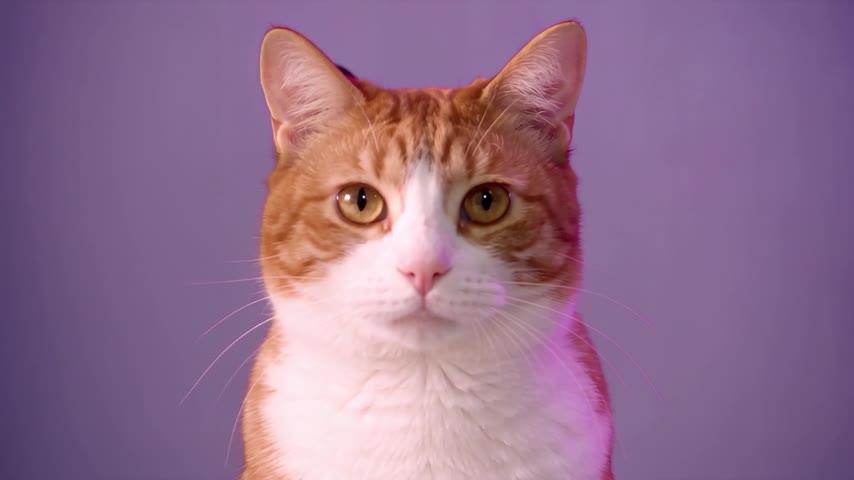
At 0.7 seconds in our generated cat video, the orange cat from Photo 1 opens close to the camera. The tuxedo partner from Photo 2 is not visible in this close-up; both dancers appear in the later frame below. This is an output frame, not a separate input image or a diagram of the adult routine.
Compare the input photos and watch the complete case.
Follow the subject through the routine
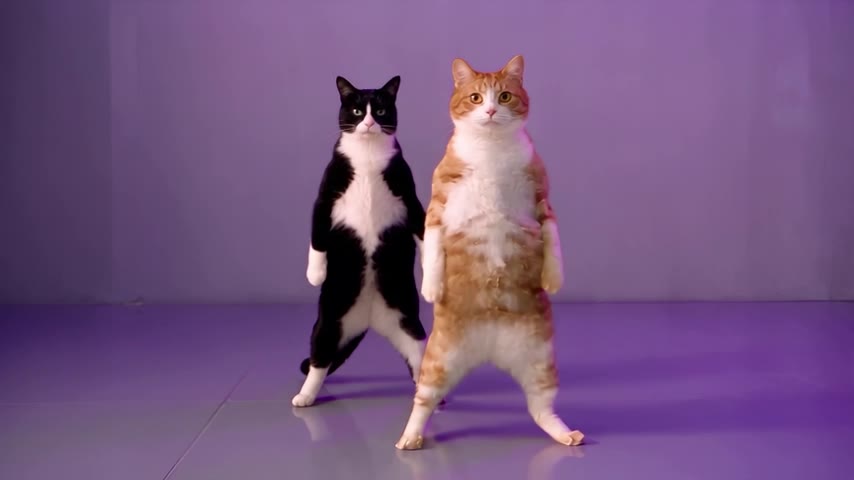
At 6 seconds, the orange main dancer and tuxedo partner are both visible. The dancers move during the routine and may change their relative positions. Follow the orange coat and tuxedo markings to check identity, rather than assuming that the subject at the left edge must always be Photo 1. The camera distance and framing can change too.
These frames are taken from one real cat output. They explain the intended mapping; they do not guarantee that every generation will avoid identity drift or role swaps.
How the adult and pet modes relate
Both modes use a main dancer slot and a partner slot, but each follows its own dance reference. Choose two adults for the human routine, or two pets for the pet routine. Do not use a cat video to judge the exact movement or framing of the human reference.
People and pets cannot be mixed in a single generation. Both photo slots are required. A single group photo is not automatically separated into two identities.
How to change who leads
- Open the creator and choose the duo type before uploading.
- Add your intended lead to Main dancer, and the other subject to Dance partner.
- Check the two previews. Use Swap dancers before generating if you want the other subject to lead.
- Confirm photo permission and review the credit cost, then submit once.
Swapping the photos changes which identity is assigned to each reference role. It does not create different choreography, a custom background or a new camera plan. Changing the duo type clears both photos so you can choose the appropriate pair again.
What to check in the finished video
Watch the opening, turns, overlaps and ending close-up. Check that each face or coat pattern stays with its assigned body and that the two subjects remain distinct. AI may change appearance, clothing, anatomy or movement; clear input photos cannot remove all variation.
A task under review should be followed using its task ID rather than resubmitted. For a technical problem, contact support with that ID. Choosing to make another video uses another generation's credits.
Choose your main dancer and partner, read the photo preparation tips, or follow the complete generation tutorial.